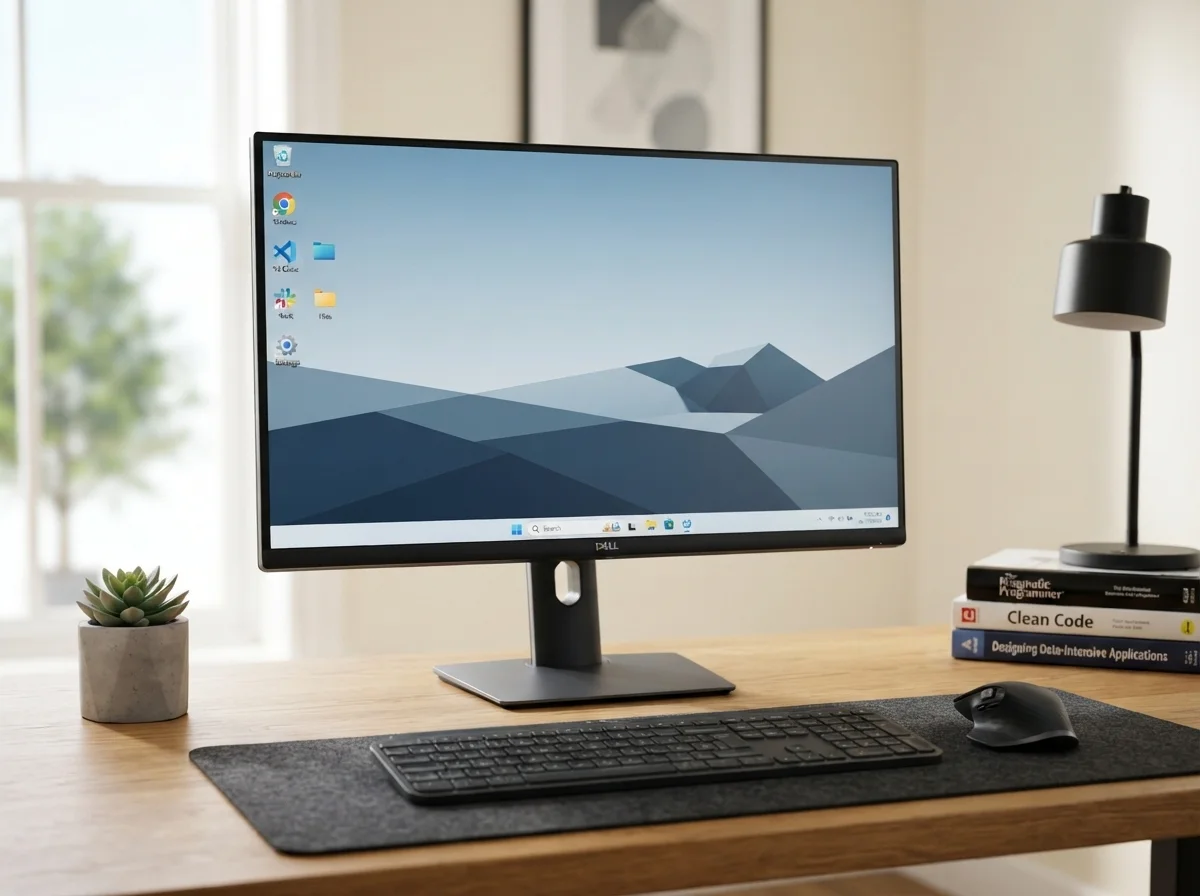
Monitor and Display Problems: Common Causes and How to Fix Them
Monitor and Display Problems: Common Causes and How to Fix Them
Monitor and display problems are among the most common computer issues. A display may suddenly go black, show a "No Signal" message, flicker, display distorted images, use the wrong resolution, or produce unusual colors. These problems can be caused by something as simple as a loose cable or incorrect Windows settings, but they can also indicate a problem with the graphics card, monitor, power supply, or other hardware.
The good news is that many display problems can be diagnosed without replacing expensive hardware. By checking the monitor, cables, display settings, graphics drivers, and computer hardware systematically, you can often identify the source of the problem.
Common Monitor and Display Problems
Display problems can occur in different forms. Common symptoms include:
- Monitor displays "No Signal".
- Computer turns on but the monitor remains black.
- Screen suddenly goes blank.
- Display flickers or flashes.
- Screen resolution is incorrect.
- Text and icons appear unusually large or small.
- Images appear distorted or stretched.
- Screen displays incorrect or unusual colors.
- Horizontal or vertical lines appear on the screen.
- Screen goes black intermittently.
- Monitor turns off after the computer starts.
- Only one monitor works when multiple monitors are connected.
- Display becomes blurry.
- Games or applications experience graphical glitches.
Common Causes of Monitor and Display Problems
1. Loose or Damaged Display Cable
A loose, damaged, or incorrectly connected cable is one of the simplest causes of display problems. HDMI, DisplayPort, DVI, and other video cables can become loose or damaged over time.
A poor connection can result in a black screen, intermittent signal, flickering, reduced image quality, or a "No Signal" message.
2. Monitor Power Problem
If the monitor does not turn on at all, check its power connection before investigating the computer.
Make sure the power cable is securely connected to both the monitor and the electrical outlet. Check that the monitor's power indicator is illuminated and that the physical power button is functioning.
3. Incorrect Input Source
Modern monitors often have several input options, such as HDMI, DisplayPort, USB-C, or other video inputs. If the monitor is configured to use the wrong input source, it may display a "No Signal" message even though the computer is working correctly.
Use the monitor's input or source button to select the port connected to your computer.
4. Graphics Driver Problems
Windows relies on graphics drivers to communicate with the graphics hardware. A corrupted, outdated, or incompatible driver can cause flickering, incorrect resolutions, crashes, graphical artifacts, or other display problems.
If a display problem started after a driver update, investigate the graphics driver and consider using the manufacturer's recommended driver version.
5. Graphics Card Problems
A faulty or improperly installed graphics card can cause display problems. Symptoms may include no display, graphical artifacts, random black screens, crashes, or unusual colors.
Desktop users should also check that the graphics card is properly seated and that any required power connectors are securely attached.
6. Incorrect Display Resolution
Selecting a resolution that is not appropriate for the monitor can make the display appear blurry, stretched, or incorrectly scaled.
Windows normally provides recommended display settings based on the connected monitor. Check the Windows display settings and select the monitor's recommended or native resolution where appropriate.
7. Incorrect Refresh Rate
The refresh rate determines how frequently the display updates the image. An unsuitable refresh rate can sometimes cause flickering, instability, or other display problems.
Check the Windows advanced display settings and select a refresh rate supported by both the monitor and graphics hardware.
8. Overheating
Excessive heat can affect computer components, including graphics cards. A graphics card that becomes too hot may produce graphical glitches, crashes, screen blackouts, or reduced performance.
Make sure the computer has adequate airflow and that dust has not accumulated around the graphics card, fans, heatsinks, and ventilation openings.
9. Faulty Monitor
The monitor itself can develop hardware problems. A failing monitor may exhibit persistent flickering, dead pixels, lines, unusual colors, intermittent power, or complete loss of display.
Testing the monitor with another computer can help determine whether the monitor or the original computer is responsible.
10. Faulty or Incompatible Cable
Not all display cables provide the same capabilities. A cable may support one resolution or refresh rate but fail to reliably support a higher configuration.
If you experience intermittent display problems, try another known-good cable that is appropriate for your monitor and graphics hardware.
How to Fix Common Monitor and Display Problems
Step 1: Check the Monitor Power
Start by confirming that the monitor is receiving power. Check the power cable and electrical outlet, then press the monitor's power button.
If there is no power indicator or response from the monitor, the problem may be related to the power cable, power adapter, outlet, or monitor hardware.
Step 2: Check the Video Cable
Disconnect and reconnect the display cable at both ends. Make sure it is securely connected to the correct port on the computer and monitor.
If the problem continues, test another compatible cable. This is a simple way to eliminate a damaged cable as a possible cause.
Step 3: Select the Correct Monitor Input
Check the monitor's input source and select the connection being used by the computer.
For example, if the computer is connected through DisplayPort, the monitor must be set to the corresponding DisplayPort input.
Step 4: Restart the Computer
Temporary graphics or Windows problems can sometimes be resolved by restarting the computer.
If the screen is frozen but Windows is still running, a Windows graphics driver reset shortcut may also help in some situations. If the computer remains completely unresponsive, further troubleshooting may be required.
Step 5: Check Windows Display Settings
Open Windows display settings and check the resolution, display orientation, scaling, and refresh rate.
When possible, use the recommended resolution for the monitor. Incorrect settings can result in blurry text, stretched images, or an improperly sized desktop.
Step 6: Update or Reinstall the Graphics Driver
If the display problem appears to be driver-related, check the graphics driver through Windows or the graphics hardware manufacturer's official support resources.
If the existing driver is corrupted, reinstalling the appropriate driver may resolve persistent display problems.
Step 7: Test Another Monitor
Connect the computer to another known-working monitor or television that supports the computer's video output.
If the second display works correctly, the original monitor or its cable may be responsible. If both displays show the same problem, investigate the computer, graphics hardware, drivers, or Windows configuration.
Step 8: Test the Monitor with Another Computer
Another useful diagnostic method is to connect the monitor to a different computer.
If the monitor works normally with another computer, the problem is more likely to be related to the original computer or its video output. If the same problem occurs on another computer, the monitor or cable may be defective.
How to Fix a "No Signal" Message
A "No Signal" message generally means that the monitor is not receiving a usable video signal from the computer.
Check the following items in order:
- Confirm that the computer is powered on.
- Check that the monitor is powered on.
- Verify the correct monitor input source.
- Reconnect the video cable.
- Try another compatible video cable.
- Try another video output port if available.
- Check the graphics card connection.
- Test another monitor if possible.
How to Fix Screen Flickering
Screen flickering can be caused by an unsuitable refresh rate, graphics driver problems, damaged cables, incompatible display settings, or hardware problems.
Start by checking the refresh rate and display resolution. Then inspect the video cable and update or reinstall the graphics driver if necessary.
If the monitor continues to flicker when connected to another computer, the monitor itself may require repair or replacement.
How to Fix a Blurry Display
A blurry display is often related to an incorrect resolution or scaling configuration. Check Windows display settings and use the monitor's recommended resolution.
If text remains blurry, check Windows scaling settings and application display settings. A poor-quality or unsuitable cable can also contribute to problems at high resolutions or refresh rates.
How to Fix Strange Lines or Graphical Artifacts
Lines, blocks, flashing textures, unusual colors, or other graphical artifacts can be caused by graphics driver problems, overheating, faulty cables, a defective monitor, or failing graphics hardware.
Check the cable and monitor first. If the problem appears only during demanding games or graphics applications, monitor the graphics card temperature and investigate whether the GPU is overheating.
Multiple Monitor Problems
Multiple-monitor configurations can introduce additional problems. One display may not be detected, the wrong monitor may be selected as the primary display, or the monitors may use incompatible resolution or refresh-rate settings.
Check Windows display settings and confirm that all connected monitors are detected. Also check each monitor's cable, input source, and supported resolution.
How to Prevent Monitor and Display Problems
Proper maintenance can reduce the likelihood of display problems and extend the useful life of your monitor and computer hardware.
- Keep monitor ventilation openings clear.
- Keep the computer free from excessive dust.
- Use good-quality, compatible display cables.
- Avoid bending or pulling video cables excessively.
- Keep graphics drivers reasonably up to date.
- Use the monitor's recommended display resolution.
- Use a supported refresh rate.
- Ensure the graphics card has adequate cooling.
- Keep the monitor away from excessive heat and moisture.
- Protect the monitor from physical impact.
When Should You Contact a Computer Technician?
Many monitor problems can be resolved by checking cables, power, Windows settings, and drivers. However, professional assistance may be appropriate if the computer continues to lose its display, the graphics card appears to be failing, the monitor has persistent hardware faults, or the system crashes whenever the display is under heavy load.
A technician can test the monitor, cables, graphics card, power supply, drivers, and other components to determine the actual source of the problem.
Conclusion
Monitor and display problems can be frustrating, but many are caused by relatively simple issues such as loose cables, incorrect input sources, unsuitable display settings, or driver problems.
Start troubleshooting by checking power, cables, monitor input, and Windows display settings. If the problem continues, test another cable or monitor and investigate the graphics driver and graphics hardware.
A systematic approach can help identify whether the problem originates from the monitor, cable, Windows configuration, graphics driver, or computer hardware, allowing you to choose the appropriate solution without unnecessarily replacing working components.
Related Articles
 Hardware
Computer Randomly Restarting: Common Causes and How to Fix It
A computer that randomly restarts can be caused by overheating, hardware failures, driver problems, Windows errors,…
 Hardware
Webcam Not Working: Common Causes and How to Fix It
Is your webcam not working on Windows? Learn how to troubleshoot camera problems, including a camera that is not…
 Hardware
How to Clone Your Hard Drive to an SSD
Work-in-progress guide on cloning Windows to a new SSD using free tools.
Comments (0)
No comments yet. Be the first to share your experience!
Leave a comment