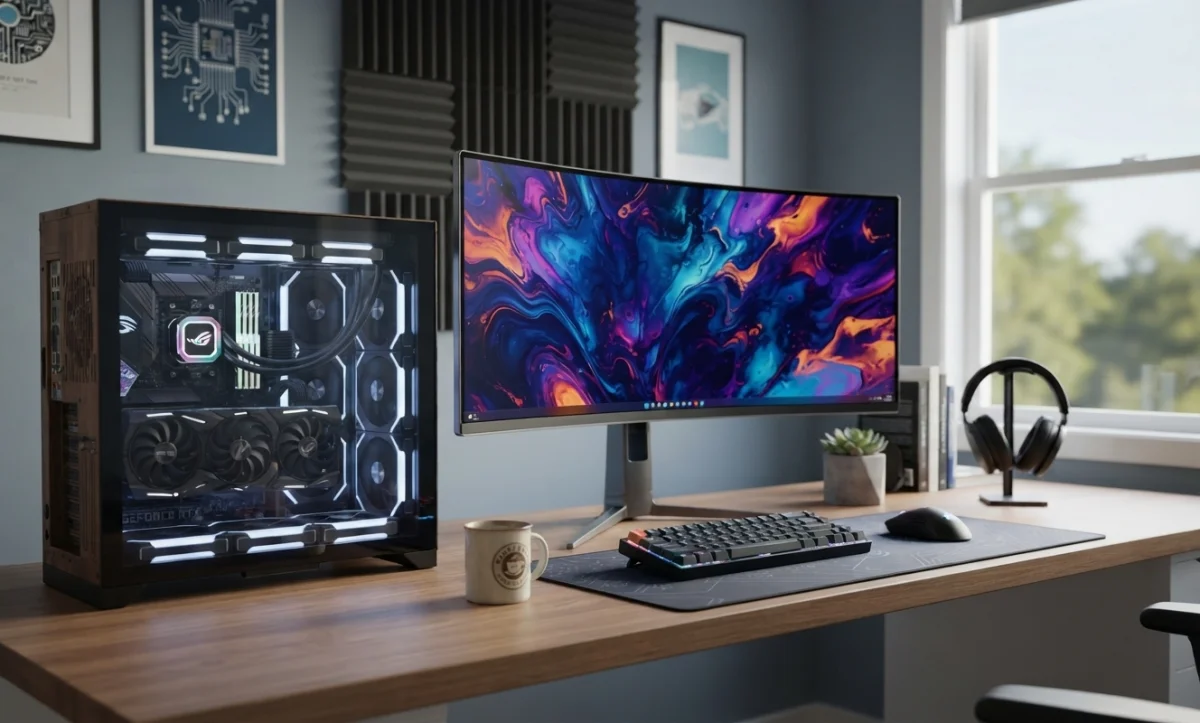
Computer Randomly Restarting: Common Causes and How to Fix It
Computer Randomly Restarting: Common Causes and How to Fix It
A computer that randomly restarts can be frustrating, particularly when it happens while you are working, gaming, browsing the Internet, or performing an important task. An unexpected restart may happen once and never return, or it may occur repeatedly and make the computer difficult to use.
Random restarts can be caused by many different problems. Common causes include overheating, faulty or unstable hardware, power supply problems, defective RAM, driver conflicts, Windows system errors, software conflicts, and automatic restart settings.
The best way to resolve the problem is to troubleshoot the computer systematically. This guide explains the most common causes of random restarts and the steps you can take to identify and fix them.
What Does It Mean When a Computer Randomly Restarts?
A random restart occurs when a computer unexpectedly shuts down or reboots without the user intentionally selecting the restart option. Sometimes Windows displays an error message before restarting. In other cases, the screen suddenly goes black and the computer immediately starts again.
The difference between a normal Windows restart and an unexpected reboot is important. If the computer repeatedly restarts without warning, there may be an underlying hardware, software, power, or operating system problem that needs attention.
Common Symptoms of Random Restart Problems
- The computer suddenly restarts while being used.
- The computer restarts during gaming or other demanding tasks.
- The system restarts when opening certain applications.
- The computer restarts shortly after starting Windows.
- Windows displays a blue screen before restarting.
- The computer shuts down and immediately powers back on.
- The computer repeatedly restarts in a loop.
- The system restarts when it becomes hot.
- The computer restarts when moving or touching the case or cable.
- The problem began after a hardware, driver, or software change.
Common Causes of a Computer Randomly Restarting
1. Computer Overheating
Excessive heat is one of the common causes of unexpected shutdowns and restarts. The CPU and GPU generate heat during normal operation, and demanding applications can increase temperatures significantly.
If the cooling system cannot remove enough heat, the computer may shut down or restart to protect the hardware.
Dust buildup, blocked ventilation, failed fans, poor airflow, and aging thermal paste can all contribute to overheating.
2. Faulty Power Supply
A desktop computer depends on a stable power supply to provide the correct voltages to the motherboard, processor, graphics card, storage devices, and other components.
A failing or insufficient power supply can cause sudden shutdowns or restarts, particularly when the computer is under heavy load.
Loose power connections, damaged cables, or problems with the electrical supply can also produce similar symptoms.
3. Faulty or Unstable RAM
Defective or improperly installed memory can cause Windows crashes, application failures, blue screens, and unexpected restarts.
Memory problems can be intermittent, which makes them particularly difficult to diagnose. If the problem started after installing or upgrading RAM, check that the memory modules are compatible and properly installed.
4. Graphics Card Problems
A graphics card can cause unexpected restarts if it is overheating, malfunctioning, improperly installed, or not receiving stable power.
Problems may be more noticeable during gaming, video editing, 3D applications, or other graphics-intensive workloads.
5. Driver Problems
Device drivers allow Windows to communicate with hardware. A corrupted, outdated, or incompatible driver can cause system instability.
Graphics, chipset, storage, network, and other hardware drivers can all potentially contribute to system crashes.
6. Windows System File Corruption
Damaged or corrupted Windows system files can cause instability and unexpected restarts. System corruption may result from failed updates, unexpected shutdowns, storage problems, malware, or other software issues.
Windows provides built-in tools that can check and repair certain types of system file corruption.
7. Software Conflicts
Newly installed applications, utilities, security software, or background services can sometimes conflict with Windows or other applications.
If the random restarts began immediately after installing new software, investigate whether that application could be contributing to the problem.
8. Automatic Restart After a System Error
Windows can be configured to automatically restart after certain system failures. As a result, a serious Windows error may appear to be a random restart because the computer reboots before you have enough time to read the error information.
Checking Windows error information and crash history can help determine whether a system failure occurred immediately before the restart.
9. Unstable Overclocking
Overclocking can increase CPU, GPU, or memory performance beyond standard manufacturer settings. However, an unstable overclock can cause crashes, freezes, overheating, and unexpected restarts.
If the problem began after changing BIOS/UEFI performance settings, consider returning the affected components to their default settings for testing.
10. Motherboard or Other Hardware Problems
In some cases, the cause may be a failing motherboard or another hardware component. Faulty power circuits, damaged connectors, storage problems, or other hardware faults can result in intermittent system instability.
How to Troubleshoot a Computer That Randomly Restarts
Step 1: Check When the Restart Happens
Pay attention to when the restart occurs. This can provide valuable information about the cause.
- Restarts during gaming may indicate heat or graphics-related problems.
- Restarts during startup may indicate Windows or hardware problems.
- Restarts during heavy workloads may indicate power or overheating issues.
- Restarts after installing software may indicate a software conflict.
- Restarts after a driver update may indicate a driver problem.
Step 2: Check for Overheating
Monitor CPU and GPU temperatures using appropriate hardware-monitoring software or manufacturer utilities.
Also inspect the computer's cooling system. Look for excessive dust, blocked ventilation openings, failed fans, and poor airflow.
Temperature limits vary between processors and graphics cards, so compare readings with the specifications provided for your particular hardware rather than relying on a single temperature value for every computer.
Step 3: Check the Power Connections
For desktop computers, check that the power cable is securely connected to the computer and electrical outlet. Inspect internal power connectors if you are comfortable working inside the computer.
If the computer restarts primarily during demanding workloads, the power supply should be investigated, especially if the system contains a high-performance graphics card.
Step 4: Check the RAM
If you recently installed or upgraded memory, make sure the modules are properly seated and compatible with the computer.
Windows memory diagnostic tools or other reputable memory-testing utilities can be used to investigate suspected RAM problems.
If a memory test reports errors, the affected memory configuration requires further investigation before relying on the computer for important work.
Step 5: Update or Reinstall Drivers
Check for driver problems, particularly if the random restarts started after installing new hardware or updating Windows.
Obtain drivers from the computer, motherboard, graphics card, or hardware manufacturer's official support resources whenever possible.
Step 6: Check Windows Update
Make sure Windows is not experiencing an unresolved update problem. Install available updates where appropriate and restart the computer normally when Windows requests it.
If the restarts began immediately after an update, investigate the update history and determine whether the problem is related to the recent system change.
Step 7: Check Windows System Files
Windows includes built-in repair utilities that can check and repair certain system files and Windows components.
System File Checker (SFC) and Deployment Image Servicing and Management (DISM) are commonly used by advanced users and technicians when system corruption is suspected.
Step 8: Check Event Viewer and Reliability History
Windows provides diagnostic information that can help identify what happened immediately before an unexpected restart.
Event Viewer can provide system-level error information, while Reliability Monitor provides a more user-friendly timeline of application failures, Windows errors, and other system events.
Look for errors that occurred immediately before the restart rather than assuming that every warning in the logs is responsible for the problem.
Step 9: Remove Recent Hardware or Software Changes
If the problem started after installing new RAM, a graphics card, storage device, driver, or application, consider reversing the recent change temporarily for testing.
If the computer becomes stable after removing the change, investigate compatibility, drivers, installation, and hardware condition.
Step 10: Return Overclocked Components to Default Settings
If the CPU, GPU, or memory has been overclocked or configured with performance settings outside the manufacturer's standard configuration, return the settings to their default values.
Run the computer normally for a period of time and determine whether the unexpected restarts continue.
Computer Restarts During Gaming
A computer that restarts primarily during gaming is often experiencing increased CPU and GPU load. Higher workloads generate more heat and can increase power consumption.
Check CPU and GPU temperatures, graphics drivers, power connections, graphics card stability, and the power supply. Also make sure the computer's cooling system is clean and functioning correctly.
Computer Restarts During Startup
If the computer restarts shortly after Windows begins loading, the problem may be related to Windows, a driver, startup software, storage, or hardware.
Pay attention to whether Windows displays a blue screen, error message, or automatic repair screen. These details can help narrow down the problem.
Computer Restarts Without a Blue Screen
A sudden restart without a visible blue screen does not necessarily mean that Windows is functioning normally. The computer may be experiencing a power interruption, hardware failure, overheating, or a system error followed by an automatic restart.
Check Windows reliability information and system event logs for clues. Also investigate hardware-related causes such as overheating, RAM, graphics hardware, and the power supply.
How to Prevent Random Computer Restarts
Regular maintenance can reduce the likelihood of unexpected restarts.
- Keep the computer's cooling system clean.
- Ensure that ventilation openings are not blocked.
- Monitor temperatures during demanding workloads.
- Use a suitable and reliable power supply.
- Keep Windows and important drivers updated.
- Install compatible hardware.
- Back up important files regularly.
- Avoid unnecessary overclocking.
- Keep important software updated.
- Investigate repeated crashes rather than ignoring them.
When Should You Contact a Computer Technician?
If a computer continues to restart after basic troubleshooting, the problem may require more detailed hardware testing.
Professional assistance is recommended when there are suspected power supply problems, repeated memory errors, persistent overheating, graphics card failures, motherboard problems, or unexplained restarts that occur even after Windows and drivers have been checked.
A technician can test the power supply, RAM, CPU, graphics card, motherboard, storage devices, cooling system, and operating system to identify the underlying problem.
Conclusion
A computer that randomly restarts can have many possible causes, ranging from overheating and faulty power supplies to RAM problems, driver conflicts, Windows errors, and unstable software.
The most effective approach is to troubleshoot systematically. Start by identifying when the restart occurs, then check temperatures, power connections, RAM, drivers, Windows system files, recent changes, and system error information.
Do not assume that replacing a component will solve the problem without first identifying the likely cause. Careful diagnosis can help prevent unnecessary hardware purchases and ensure that the actual problem is properly resolved.
Related Articles
 Hardware
Monitor and Display Problems: Common Causes and How to Fix Them
Monitor and display problems can include a blank screen, flickering, distorted images, incorrect resolution, no signal,…
 Hardware
Webcam Not Working: Common Causes and How to Fix It
Is your webcam not working on Windows? Learn how to troubleshoot camera problems, including a camera that is not…
 Hardware
How to Clone Your Hard Drive to an SSD
Work-in-progress guide on cloning Windows to a new SSD using free tools.
Comments (0)
No comments yet. Be the first to share your experience!
Leave a comment