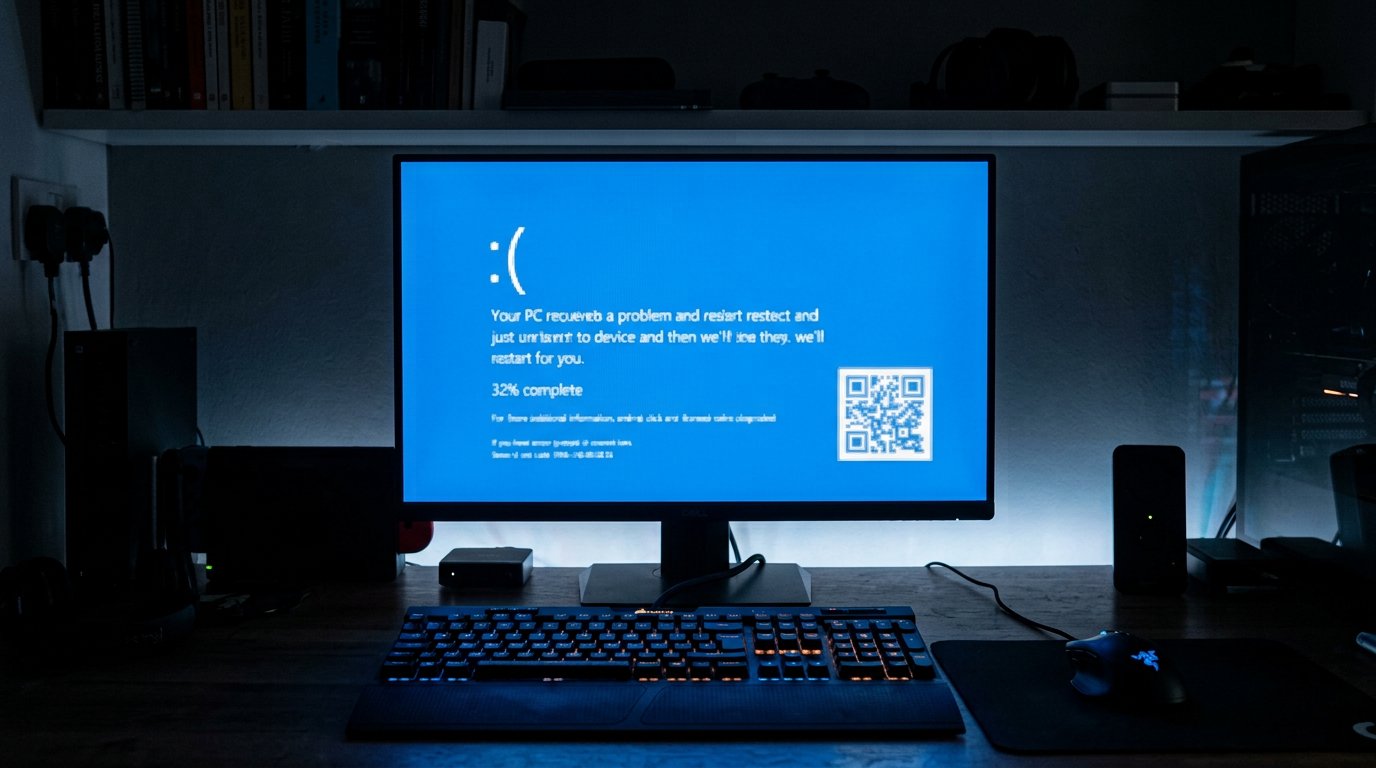
How to Fix Blue Screen of Death (BSOD) Errors on Windows
What is a Blue Screen of Death?
A BSOD (officially a "stop error") happens when Windows encounters a fault it cannot safely continue from. The screen shows a stop code such as IRQL_NOT_LESS_OR_EQUAL or CRITICAL_PROCESS_DIED — that code is your best clue to the cause.
Step 1: Note the stop code
Photograph or write down the code and the failing driver name if one is shown (e.g. nvlddmkm.sys = NVIDIA, ndis.sys = networking). This tells you which direction to investigate.
Step 2: Boot into Safe Mode
- Hold Shift while clicking Restart.
- Choose Troubleshoot → Advanced options → Startup Settings → Restart.
- Press 4 or 5 for Safe Mode (with networking if you need downloads).
If the PC is stable in Safe Mode, the cause is usually a driver or startup program — not your hardware.
Step 3: Update or roll back drivers
- Open Device Manager, expand each section and look for yellow warning icons.
- Right-click the suspect device → Update driver, or Properties → Driver → Roll Back Driver if the problem started right after an update.
- For graphics cards, clean-install the driver with DDU (Display Driver Uninstaller) in Safe Mode, then reinstall the latest version.
Step 4: Undo recent changes
Did the crashes start after installing software, a driver, or a Windows update? Uninstall the program, or go to Settings → Windows Update → Update history → Uninstall updates.
Step 5: Check memory and disk
Run the built-in Windows Memory Diagnostic (type "memory" in Start). For storage, open Command Prompt as admin and run chkdsk C: /f /r, then sfc /scannow to repair corrupted system files. See our hard drive testing guide for deeper checks.
Step 6: Check temperatures and power
Overheating CPUs and failing power supplies cause random BSODs. Clean dust from vents, monitor temps with HWiNFO (download in our Download Center), and test with another PSU if you have one.
When to call a professional
If crashes persist after these steps, you may have failing hardware. Our hardware diagnostics service will pinpoint the faulty part. Book a diagnostic.
Related Articles
 Windows
Computer Freezing: Causes, Troubleshooting, and Prevention
Learn why a computer freezes or becomes unresponsive and how to troubleshoot common causes such as insufficient memory,…
 Windows
Forgotten Windows Password: How to Recover Access to Your Computer
Forgotten your Windows password? Learn safe and legitimate ways to regain access to Windows using Microsoft account…
 Windows
Driver Problems: Common Causes and How to Fix Windows Driver Issues
Driver problems can cause hardware devices to stop working, produce error messages, crash Windows, or perform poorly.…
Comments (1)
Memory was the culprit
Leave a comment